
If you have been looking for an integrated development environment built directly on top of the AppGameKit framework, AppGameKit Studio is exactly what you need. As it prepares for its official release, this tool finally delivers something the community has been desperate for: a proper visual world and level editor. In this post, I will walk you through what the Studio offers, its core workflow, and how to get a simple project off the ground based on my own experience with it.
What is AppGameKit?
AppGameKit is a game development framework that has been floating around the industry for a while. It gives you two main paths for writing code:
- Its own AppGameKit BASIC style scripting language.
- Raw C/C++ development.
It packs over a thousand commands out of the box, handling everything from basic graphics to 3D rendering, augmented reality, and even in-app purchases. If you need a feature, there is almost certainly a native command for it.
The glaring omission for years was a proper level editor. In an era where 2D engines like Game Maker Studio, Godot, and Construct fiercely compete, lacking a visual tool to design levels was a massive handicap. I once tried to manually hardcode the X and Y coordinates for a massive 2D platformer map in the older version, and I gave up after two hours of pure frustration. AppGameKit Studio specifically patches this massive hole and positions itself as the true successor to the original framework.
IDE overview
I tested version 0.95 for this breakdown. It sits incredibly close to the final release, and version 1.0 is expected to roll out with a Vulkan backend renderer.
Highlighted interface features
- Fully customizable windows: You can toggle any panel on or off through the View menu. They operate on a tabbed system; you can float them, dock them side-by-side, or drop them right inside another tab.
- Multi-monitor and high DPI support: It scales beautifully across modern displays.
- Theming options: The editor comes with dark, light, and classic themes. The code editor has its own separate dark and light modes. I initially got this wrong and couldn’t figure out why my code editor was blindingly white while the rest of the interface was dark. You can tweak fonts and other settings in the Settings menu.
- Integrated help system: Everything from absolute basics to the full command list is right here. You can jump into the sprite section and pull up the full documentation for any command instantly.
- Context-sensitive help: If you hover over a command in your code and hit F1, it pulls up the exact documentation page for it.
- Asset browser: You can link your resource folders and access everything directly. You can even filter media files by specific types, like textures or audio.
- Debugger: It features solid debugging tools like step in, step over, step out, a reliable call stack, and an automatic frame rate updater.
There are a few noticeable missing pieces, like code folding, but otherwise, the coding experience is highly stable. Code completion triggers reliably, and jumping between function and variable definitions is incredibly snappy.
How to create a new project?
- Navigate to File > New Project.
- Give your project a recognizable name. The engine will generate a new folder for you as long as the directory isn’t already occupied.
- The project template loads automatically. It provides the window and resolution configuration, plus the core game loop. The default code just prints the active frame rate to the screen every loop.
- Open your project folder and drag your images and audio files directly into the media folder. They will immediately show up in the Media files panel inside the editor.
World editor: heart of the Studio
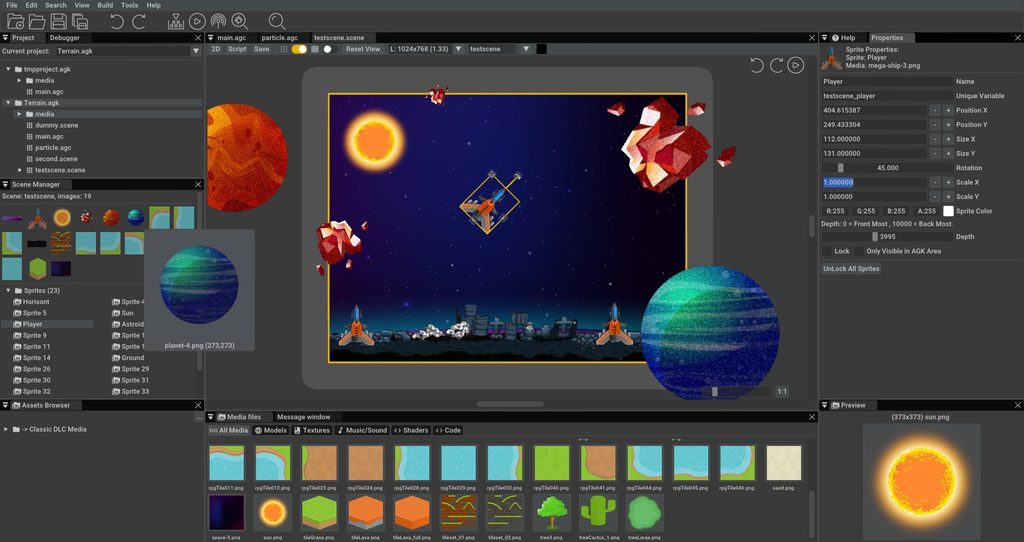
When you right-click on your project and add a new scene, the world editor pops open. This is where the Studio truly shines. Under the hood, this editor is actually a massive code generator.
Mobile-focused preview
The editor was clearly engineered with mobile development in mind. You can quickly snap between different device resolutions:
- Phones like the iPhone X, iPhone 4, and iPhone 6
- iPads
- Landscape and portrait orientations
Object placement
- You can drag an image right into the viewport to instantly generate a sprite.
- You can easily toggle the grid on or off.
- The Properties panel allows you to rename the sprite and punch in exact numerical coordinates.
- Every object has resizing handles on its corners and edges, plus a dedicated rotation control at the top.
- The Scene manager tracks and lists every single object you place.
Layer support
You can stack objects using a layer slider and direct layer modes. For example, you can take a star sprite and drop it into the “middle back” layer so it sits perfectly behind your foreground. The setup froze on me once when I tried dumping 50 sprites onto a single layer simultaneously, so just keep your scene organized. If you delete an object from the viewport, it remains accessible in the Scene manager so you can easily drop it back in later.
Scene file and code generation
You can hot-swap between the visual 2D editor and the raw script view. In the script view, you can see the exact code the scene generated. You can even export the scene and run it on the classic AppGameKit—they are completely cross-compatible.
Character definition
After dropping your main character into the scene, give it a name in the Properties panel. The most critical field here is the unique variable. This is the exact tag you use to grab the character in your code. The Studio automatically slaps the scene name onto the front of it (for example, mygame_player).
Linking the scene to your code
Getting your scene running in the code requires three simple steps:
- Use
#includeto inject the scene file into your project. If you have ever touched a C/C++ preprocessor, you know exactly how this works. - Call the scene’s setup function right before your main loop kicks off.
- Call the scene’s sync function inside the main loop.
You can juggle multiple scenes in a single project. You can load specific scenes for menus, core gameplay, and game over screens, and simply unload the ones you are done with.
Once the scene loads, moving a character with code is incredibly easy. Just feed the SetSpriteX command your character’s unique variable and an updated X value, and the sprite will slide across the screen every frame. Code completion works perfectly for these commands too.
Input management
The engine handles inputs brilliantly. You can write a single block of code that simultaneously supports three different control schemes:
- A physical controller plugged into your machine
- An on-screen touch controller for mobile
- Standard WASD keys for desktop
Virtual joystick and buttons
- Use
SetVirtualJoystickScreenPositionto place the joystick. In my test, I anchored it 100 pixels inward from the bottom right corner. - Make it visible with
SetVirtualJoystickVisible. - You can apply the exact same logic to spawn a virtual button and label it “Fire”.
- Read the vertical axis inside your loop using
GetVirtualJoystickY. - To prevent the joystick from getting stuck and causing constant drift, check if the absolute value breaks a small threshold, like 0.1.
- If it breaks the threshold, update the sprite’s Y value by multiplying it by your vertical speed.
- Check if the button is mashed using
GetVirtualButtonPressed.
These virtual controls will not show up on your desktop monitor. The engine defaults to WASD and the spacebar there. To see the touch controls, you must push the app to a physical mobile device.
Mobile testing: Broadcast
One of my absolute favorite features in AppGameKit is broadcasting. You install the AppGameKit companion app on your phone (available for both iOS and Android) and open it on the same network as your PC. When you hit broadcast in the IDE, the game beams directly to your phone. You can tweak your code, beam it over instantly, and test your touch joystick and buttons in a real-world environment. It didn’t work on my first attempt because my phone was accidentally connected to my guest Wi-Fi, so make sure both devices share the exact same network.
Shooting system
To demonstrate the basic scripting logic, let’s build a quick shooting mechanic.
Bullet data structure
First, define a custom type:
xandy(float)alive(integer)sprite ID(integer)image(integer)
AppGameKit tracks resources using raw integer IDs, which keeps the logic incredibly clean. We build an array holding a maximum of five bullets at a time: Dim bullets[5] as bullet.
Creating bullets
The CreateBullets function loads the bullet graphic simply by dragging it from the media folder straight into the code. The editor writes the necessary load command for you. The loop resets every bullet and assigns them unique sprite IDs from 1001 to 1005, ensuring they never clash with other objects.
Firing bullets
The FireBullet function runs on this logic:
- A laser sound effect is dragged from the media folder and loaded.
- The loop checks the five bullets, hunting for the first one where
aliveis set to 0. - When it finds an empty bullet, it generates the sprite, snaps it to the provided x and y coordinates, flips
aliveto 1, and blasts the sound effect. - If all five bullets are currently flying, nothing happens.
Initially, my bullets spawned in a static pile right on top of each other. I had to tweak the coordinates so the bullet spawned at the character’s X position plus the sprite width, and offset the Y position by about 30 pixels so it looked like it was actually firing out of the weapon.
Bullet movement
The UpdateBullets function runs every single loop:
- It grabs every
alivebullet and bumps its X value by 10. You can easily tie this to a dedicated bullet speed variable. - It updates the sprite’s physical position.
- If the sprite crosses the right edge of the screen, it flips
aliveback to 0 and deletes the sprite. That specific bullet slot is now ready to fire again.
Now you have a working gun that fires up to five bullets, recycles them when they leave the screen, and creates the foundational loop for a basic shooter.
Sprite sheet and draw mode
Handling sprite sheets is incredibly painless here. In my test, I used a single image file containing 11 different asteroids. This exact method also works for tile sheets if you are building tile maps.
- Drop the sprite sheet into the scene, leaving it completely off-screen.
- Select it in the Scene manager, right-click, and hit Setup Sprite Sheet.
- Punch in the number of rows and columns (in my case, 1 row and 11 columns) and click Add Sprite Sheet.
- Every single piece instantly becomes an independent sprite.
When you switch over to Draw mode, you can rapidly paint these sprites directly into the world. You can target specific layers effortlessly. When “Fit to grid” is active, the sprites snap perfectly into place, which is exactly how you want a tile map to behave. When you turn it off, you can drop sprites at their exact size wherever you want. You can apply this exact same painting logic to any standard sprite in your scene.
You can easily expand the game by dropping collision logic for these asteroids right into the UpdateBullets function.
Missing features and scope
It is important to note that this specific version of Studio does not feature every single command from the base AppGameKit. There are also a few features I didn’t test in the video:
- Music playback
- Full-screen GLSL shaders
- GLSL shaders applied directly to individual sprites
The documentation is fully prepped for both BASIC and C. However, the Studio itself was clearly engineered around the BASIC-style language. With a massive library of sample projects included, figuring out how to build specific mechanics is very straightforward.
Is it worth buying?
AppGameKit Studio is essentially the classic AppGameKit supercharged with vastly superior development tools. Despite generating massive amounts of code in the background, the visual editor runs smoothly and remains highly stable. If you click with the language and its specific approach to game logic, it is incredibly easy to learn and exceptionally well documented.
If you already use the older AppGameKit, upgrading to Studio is a total no-brainer. For absolute beginners, the choice depends entirely on your specific project needs and whether the scripting language feels natural to you. With this release, AppGameKit finally arms itself to directly compete with heavy hitters like Construct and Game Maker.