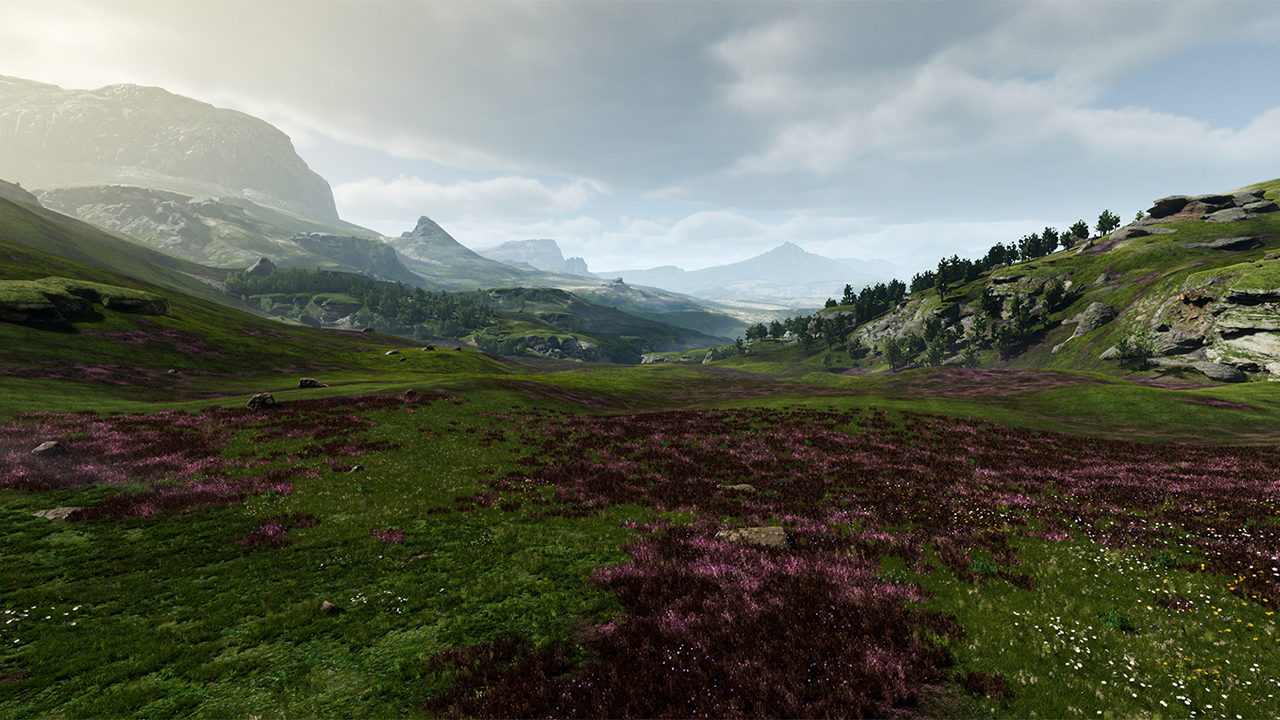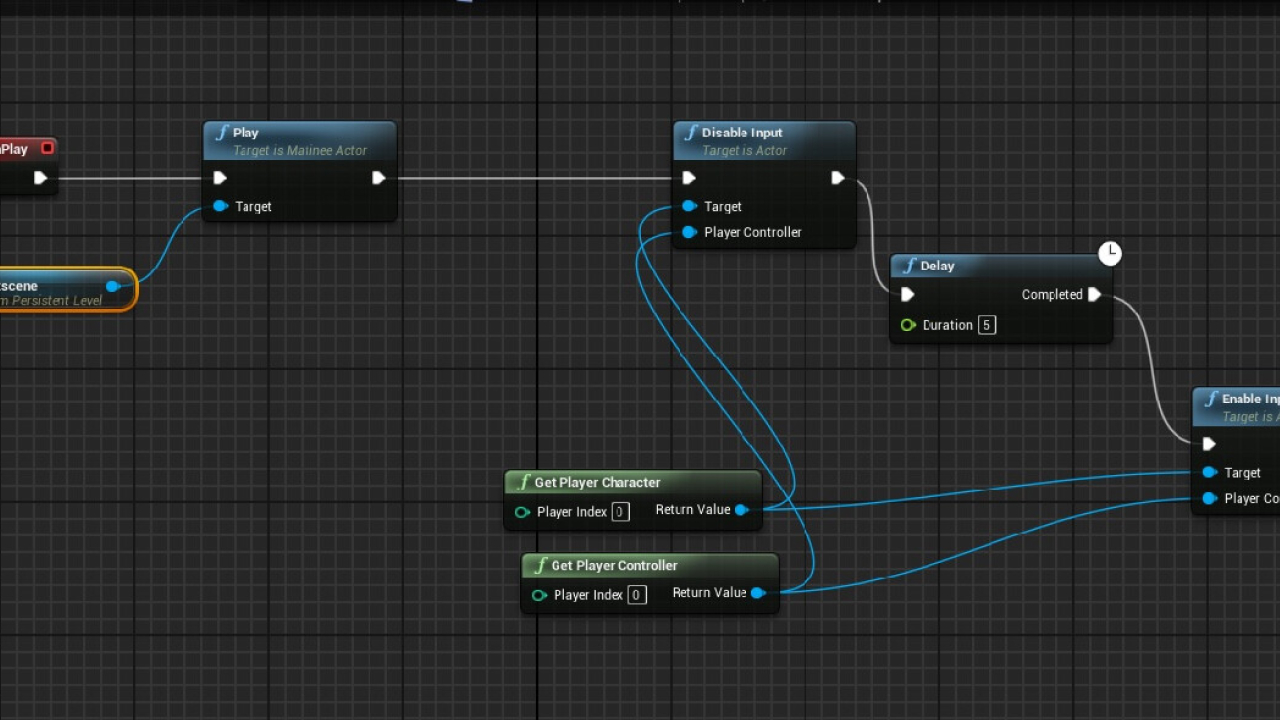

A strong Unreal Engine 5 VFX workflow begins with a simple realization: if you can imagine it, you can create it. Once you master your chosen 3D software, your only limit is your imagination. The gap between the image in your head and the final render on your screen shrinks the more you create.
In this guide, I will show you how to bring your imagination to the screen as quickly as possible. We will set up the camera, environment, and lighting to hit that 80% completion mark rapidly. This leaves the bulk of our time for the fun part: refining details and fine-tuning. We will also build a fully customizable foliage system you can paint over your scene, and cover how to get the highest quality output.
How to gather references?
Before starting any project, big or small, I gather reference images. I throw them all into a free tool called PureRef so I can view them in one place. Once my general direction is clear, my immediate goal is to hit that 80% mark as fast as possible.
How to set up your project?
The specific level preset you choose does not matter much; I just need a basic starting point, so I go with the Games and Blank preset.
- Enable Starter Content to get some basic building blocks for the scene.
- Unreal Engine 5 defaults to Lumen, its global illumination system, which we will use.
- Enable hardware ray tracing. Turning on hidden RTX settings manually is a massive headache, and this checkbox toggles them all automatically. It didn’t work on my first attempt because my scene looked flat, but I realized I needed this checked for things like ray-traced shadows to function properly.
How to navigate the viewport?
- Hold right-click and use W, A, S, D to fly around.
- Use Q and E to control your elevation.
- The slider on the top right adjusts camera speed sensitivity.
- With an object selected, the Spacebar cycles through position, rotation, and scale gizmos.
- Ctrl + backtick switches between world and local space orientation.
- G toggles viewport icons on and off.
- F focuses your view directly on the selected object.
How to set up your camera?
I always start with the camera to avoid wasting time building geometry that will never be in the frame.
- Open the Place Actors window. If it is hidden, go to Window > Place Actors.
- Search for a Cine Camera Actor and drag it into your scene.
- Right-click the camera in the Outliner and select Pilot Camera.
- Add a standard cube and scale it to look like a door so you have a focal point.
- In the Details panel, set your aspect ratio, focal length, and aperture (f-stop), which controls your depth of field.
- Under Focus Settings, set the camera to track the door. I initially got this wrong by trying to keyframe focus manually, but setting it to track means no matter where the camera moves, the focus stays locked exactly on your subject.
How to place environment assets?
One of the biggest strengths of this engine is the massive library of free 3D assets and textures available via Quixel Bridge. To keep things moving, I pre-loaded assets like dirt, walls, logs, and a wooden door.
These are Nanite meshes. Nanite keeps frame rates incredibly high even when you drop millions of polygons into the scene. I arrange the environment based on my initial idea. It takes a bit of back-and-forth, but remember the goal is 80%—do not get bogged down in micro-details. If the scene looks slightly empty, that is fine; we will flood it with thick foliage later.
How to cut a hole in a wall?
To add some mystery, I want the door slightly open, but the solid rock wall behind it blocks the path. The solution is cutting a door-sized hole directly into the rock.
- Select your placeholder door and stretch it out.
- Switch to the Modeling layout on the left.
- Select both the rock and the stretched cube.
- Apply a Mesh Boolean. You might need to toggle between the primary and secondary cut options.
The setup froze on me once during this step because I clicked too fast—give your computer a moment to calculate the boolean logic. After a few seconds, you get a perfect hole leading to another world.
How to build a dark room?
I want that door to open into complete darkness. Open your Content Browser with Ctrl + Space. Search for a standard wall from the Starter Content, drag it in, and duplicate it to build a tiny, enclosed room to block out the light. Add a few rock assets inside so it is not just a blank white box reflecting light.
How to configure scene lighting?
To judge our light accurately, we must turn off auto-exposure first.
- Search for a Post Process Volume (PPV) in Place Actors and drop it in.
- Search “unbound” in the Details panel and check Infinite Extent so it affects the whole level, not just the physical box volume.
- Search “brightness” and set the minimum and maximum values to be identical.
The PPV controls your global light settings, color correction, and camera effects. Your scene relies on a Directional Light (the sun), a Skylight (for indirect bounces), and a Sky Atmosphere.
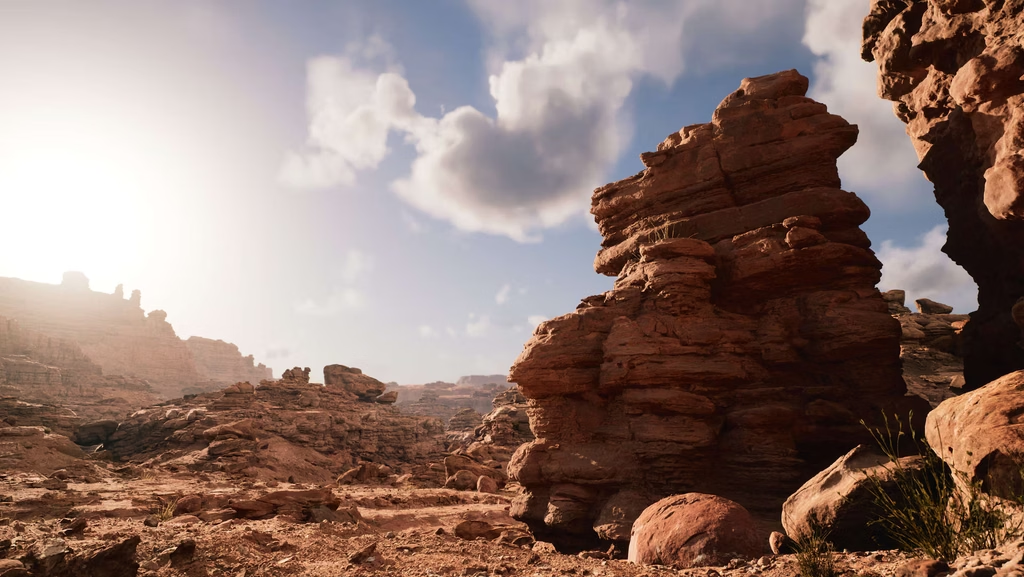
How to achieve an overcast look?
My goal is a moody, overcast vibe with soft light hitting the door.
- Aim the sun directly at the door.
- Place walls around the rest of the scene to block the light, isolating the door entirely.
- Apply moss textures to these light-blocking walls. They do not need to look pretty; they just need to bounce dark forest colors instead of harsh white light back into your scene.
For the overcast sky, use an HDRI. Enable the HDRI plugin in your settings and restart the engine. Drag it into the scene, reset its position, and drop it slightly below the floor. Re-enable your directional light and tweak the Source Angle. This softens the shadows, giving a great blend of overcast ambiance and direct sunlight.
How to set up a customizable foliage master material?
Before fine-tuning, let’s build a customizable plant material you can reuse in any project. I use the Forest of the World pack from Grasswold, which offers production-quality assets built from real-world 3D scans.
Drag your meshes and textures into the Content Browser. I wasted an hour before realizing Nanite simply does not support double-sided foliage yet, so do not force Nanite on these specific plant meshes if you want light to pass through them.
Right-click to create a new material and name it Foliage Master Material. Open the editor:
- Enable Double Sided.
- Change the Shading Model to Two Sided Foliage to allow light to pass through the leaves.
- Set Blend Mode to Masked for a slight performance boost.
How to connect material nodes?
- Base Color: Connect the RGB output. Create a parameter node and a Multiply node to control brightness. Group them by pressing C.
- Specular: Add a parameter set to 0.5 to control reflectivity.
- Roughness: Drop in your roughness texture. Multiply it with a parameter to control how wet or dry the leaves look.
- Opacity: Connect this to the Opacity Mask channel.
- Normal Map: Use a Lerp node, a Constant3Vector (blue color), and a parameter node to control the bump intensity.
- Translucency: This is crucial for foliage. Multiply this texture by a parameter (I use 0.25) to dictate how much light bleeds through the leaves.
How to add wind to foliage?
Plants look completely dead without wind. Use the Simple Grass Wind node. Convert its settings (intensity, height, speed) into parameters and connect it to World Position Offset.
If you just plug it in, the plant will float as if detached from the ground. Fix this by routing the blue channel of a Bounding Box UV node into a Multiply, then into your World Position Offset. To toggle it easily, use a Switch parameter set to false by default.
How to paint foliage in your scene?
Create a Material Instance from your master material, assign it to your plant meshes, and you are ready.
Switch to Foliage Mode at the top. Drag your meshes into the foliage box. You can adjust the density, scale variation, and brush size. Hold left-click to scatter plants, and Shift + click to erase. Use Single Instance Mode to place specific plants manually for maximum artistic control.
Refine details and adjust wetness
Now we have a working sandbox. Detailing is time-consuming but incredibly fun because the image in your head finally merges with the art on screen.
In my own setup, I placed a Rectangle Light facing up from the floor with low intensity to create a subtle wet ground reflection. Adjust your foliage roughness to match this wet look. Add some vignette and drop the gamma in your PPV for a moodier atmosphere.
Play with the camera’s focal length and depth of field. Step away from your desk if you feel stuck; returning with fresh eyes usually improves your work tenfold.
How to render high quality output?
If you just want a single image, use the high-resolution screenshot tool. For video, you need a Level Sequence.
Create one from the Animation menu, drag your camera in, and set your frame length. Enable the Movie Render Queue plugin and restart. Click the three dots next to the clapperboard icon in the Sequencer.
- Use an EXR sequence with DWAA compression for maximum color control in post-production.
- Set your anti-aliasing temporal sample count between 32 and 64. It takes longer to render, but it completely removes blurry wind artifacts.
- For screen percentage, setting it between 150 and 200 forces the engine to render at 4K and downscale to 2K, resulting in a much crisper image.
Save your render settings as a preset so you do not have to rebuild them later. Once the frames finish rendering, bring them into DaVinci Resolve. Apply some light color correction and film grain, and you will have a truly stunning final result ready to share.