
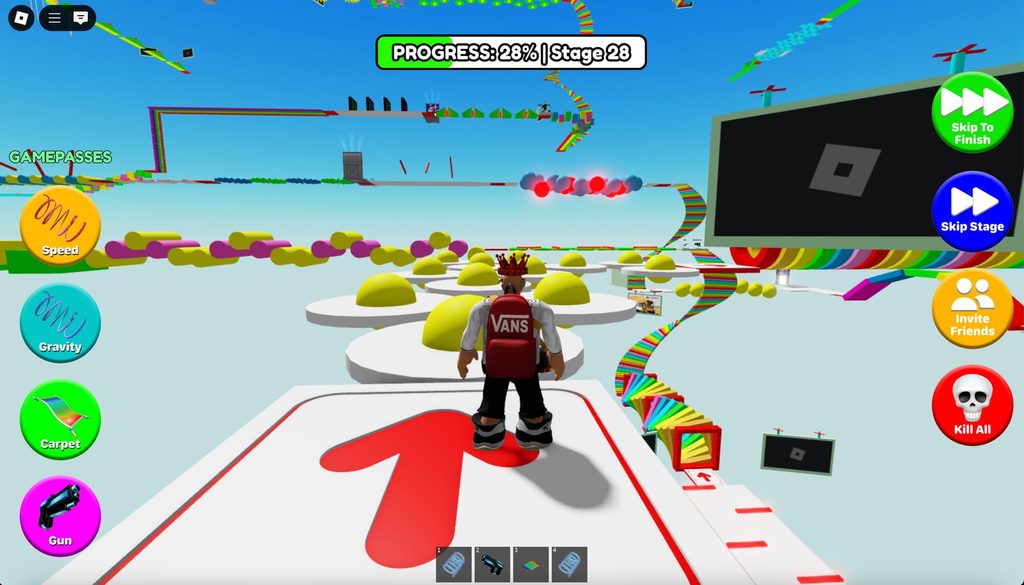
An Obby is one of the oldest and most legendary game types on Roblox. I remember spending countless hours trying to beat these obstacle courses when I first started playing. In this post, we are going to build the foundation of an Obby completely from scratch. We will cover how to construct the actual obstacles, code the progression system, and display the player’s current stage right on their screen.
What are core components of an Obby?
A solid Obby relies on four major pieces:
- The map: This is the most crucial part. The obstacles are what actually make the game fun to play.
- The save system: A player must respawn at their current stage, and their data absolutely cannot be wiped when they leave the game. I once skipped testing my save system, and my players were furious when they lost hours of progress.
- Monetization: This includes game passes and developer products. This is where you actually earn your Robux.
- A unique feature: I will dive into this specific part in the next installment of this series.
To get started, we just open up a completely blank Baseplate.
How to build classic Obby obstacles?
Basic obstacles
Every classic Obby features a few staple designs:
- Standard blocks you have to jump across.
- A minefield of kill bricks.
- Long, narrow walls you have to carefully edge around.
We apply these specific settings to all our structural parts:
- Add a selection box to make them look a bit more polished.
- Turn off their ability to cast shadows.
- Set both CanCollide and Anchored to true. I once forgot to check the Anchored box, and my entire obstacle course instantly collapsed the second I hit play.
After placing your blocks, playtesting is mandatory. If the gap between them is too short, the player can just walk across without jumping. So, we stretch the gaps out a bit. For the wall obstacles, build them high enough so the player cannot just jump over them, and extend them outwards. Alternate these walls left and right to force the player to weave.
Disappearing blocks
We can spice up the standard jump pads by making them disappear. When a player steps on a block, it should begin to fade away. The player must jump to the next block before it completely vanishes; otherwise, they fall and have to restart the stage.
Here is the exact setup:
- Group all these specific blocks into a folder named obstacle.
- Drop a script directly into that folder. This single script controls every block inside.
- The script runs a
forloop, iterating through everything in the folder usingscript.Parent:GetChildren(). - Because the script itself lives inside the folder, we add a
v:IsA("Part")check so the script doesn’t accidentally try to modify itself. - We bind a
Touchedfunction to the part. We use a Humanoid check to verify that whatever touched the block is actually a player. - If it is a player, we wait about half a second, turn the block invisible, and set
CanCollideto false. Any player still standing on it will fall through. - After roughly 2 seconds, the block resets and reappears.
After running a quick test, it works perfectly.
Kill bricks
You also need those classic obstacles littered with deadly red blocks.
- Select all your kill bricks (make sure you don’t accidentally select the baseplate) and drop them into a new folder named kill bricks.
- Add a script to this folder. The logic is nearly identical to the disappearing blocks: it loops through the folder, checks if the item is a part, and verifies if a player touched it.
- If a Humanoid is detected, we grab it using
otherPart.Parent:FindFirstChild("Humanoid")and callTakeDamage(100).
Since players spawn with exactly 100 health, this instantly kills them. Testing confirms it works exactly as intended. Once that is done, group all your obstacles neatly. This keeps your workspace organized and stops you from losing your mind later.
How to script the stage system?
When a player reaches the next area, their respawn point must update, and the game needs to track exactly which stage they are currently on.
Setting up spawn points
- Create a folder inside the Workspace named spawns.
- Drop every single spawn point into this folder.
- Name the spawns sequentially based on their stage number: the first is 1, the second is 2, and so on.
Critical note: These spawns cannot just be regular parts; they must be actual SpawnLocation objects. I made this exact mistake in my own setup, and it took me a frustrating 5 minutes to go back and replace every single one. If you use normal parts, the respawn system simply will not trigger.
Creating player data folder
Inside ServerStorage, create a folder named player data. This is where we will store the progression for everyone in the server.
Generating folders when players join
We add a script into ServerScriptService. This script handles the initial setup:
- It triggers when someone joins using
game.Players.PlayerAdded:Connect(function(player). - It creates a new folder using
Instance.new("Folder"). - It renames that folder to match the player’s specific UserId.
- It places this folder directly inside the player data folder in ServerStorage.
- It creates an IntValue named stage and sets its starting value to 1.
During my first test, the folder generated fine, but the IntValue was completely missing. I realized I completely forgot to assign the IntValue’s Parent to the newly created player folder. Once I added the currentStage.Parent = playerFolder line, the stage value showed up perfectly.
Script to increase stages
We need another script to actively track the player’s progression. The logic is simple: if a player touches a spawn point, and that spawn’s number is exactly one higher than their current stage, we increase their stage by one. So, if a player on stage 1 touches a spawn named “2”, they advance to stage 2.
The script executes these steps:
- It grabs both the spawns folder and the player data folder.
- It loops through all the spawns and binds a
Touchedevent to every single one. - It checks for a Humanoid to confirm a player character touched it.
- It pulls the player object from the character using
game.Players:GetPlayerFromCharacter(). - It locates the player’s specific data folder using
playerData:FindFirstChild(player.UserId). - It grabs the stage value from that folder using
WaitForChild. - It converts the spawn’s string name into a number using
tonumber(v.Name). - Anti-cheat check: It verifies that the touched spawn is exactly one level higher than the current stage. Without this, a player could exploit the game and skip stages.
- If the condition passes, it adds 1 to the stage value and updates the player’s
RespawnLocationto that specific spawn.
Handling the first spawn
When a player joins, they must start at stage 1. To enforce this, we drop the line player.RespawnLocation = workspace.spawns["1"] straight into the PlayerAdded script.
Debugging
During my test run, transitioning to stage 2 didn’t trigger at all. The issue was a tiny syntax error: I missed the .Value property on my currentStage variable. Once I fixed that, transitioning from stage 1 to 2 worked smoothly, and dying correctly respawned me at stage 2 instead of the beginning.
Also, my character kept spawning facing backward. The fix was super simple: I just rotated all the spawn pads 180 degrees.
How to set up leaderstats?
We want the player’s current stage to display cleanly in the top right corner of the screen next to their name. Head back to the PlayerAdded script and add this:
- Create a new folder using
Instance.new("Folder")and name it leaderstats (it must be spelled exactly like this, all lowercase, or it will break). - Set the folder’s Parent directly to the player.
- Create a new IntValue for the display value and set it equal to the actual current stage value.
- Bind a
Changedevent to the actual stage value. Whenever the player levels up, the event fires and updates the leaderboard usingstageDisplay.Value = currentStage.Value.
On my first attempt, this failed entirely because I forgot to assign the stage display value’s Parent to the leaderstats folder. After fixing that technical hiccup, the number 1 popped up perfectly. As I touched the next spawns, it updated to 2, 3, and so on.
Here is how the system loops: The hard data lives in the IntValue tucked away in the player data folder. The Changed event listens to that specific value, and whenever it ticks up, it automatically pushes the new number to the visual leaderboard.
Playtesting and publishing
To run a genuine playtest, we delete the baseplate entirely. During the test:
- Dying on an obstacle correctly sent me back to stage 2.
- Stages 3, 4, and 5 worked flawlessly.
- Stage 5 featured the disappearing blocks, forcing me to move quickly.
- I successfully reached stage 6.
The very last step is saving the game directly to Roblox. Just open the menu, give your game a solid name, and hit publish.