
Setting up a landscape in Unreal Engine 5 from scratch, shaping it with sculpt tools, and applying a multi-layered material is quite straightforward. In this guide, I will walk you through the exact steps to get your terrain ready.
Prepare your new level
Start by opening the File menu and creating a new level. Selecting the Basic template is perfectly fine for this. Once the level opens, delete the default floor object in your scene so you have an empty space to work with.
Generate a new landscape
To start building your terrain, switch to Landscape mode from the top selection menu. You will immediately see a green wireframe preview of your landscape size and a few configuration settings.
You have two main paths here:
- Create New: Generates a completely blank terrain.
- Import from File: Uses a heightmap. This is a black and white image where the shades determine the elevation data. You can prepare these outside of Unreal, but we will skip that for this specific guide.
Adjust landscape parameters
Under the Create New section, pay attention to these settings:
- Edit Layers: Keep this checked if you want to manage mountains, rivers, and the base ground on separate non-destructive layers later.
- Material: Leave this blank for now. We will assign one later.
- Location, Rotation, and Scale: Adjust the position and overall dimensions.
- Section Size and Resolution: Modify these values to scale the total area. You can also just click Fill World to cover the entire playable space.
Once you are happy with the parameters, click Create. The landscape will appear in your scene within seconds. It looks flat and empty right now, but it is fully ready to be shaped.
Shape your terrain with sculpt tools
While in Landscape mode, the Sculpt tab opens up. Let’s look at the primary tools you will use.
The primary tool is Sculpt. Left-click and hold to raise the ground and form mountains. You can adjust the Brush Size, Tool Strength, and Falloff (how soft the edges of your brush are). If you hold the Shift key while left-clicking, it reverses the effect and digs into the ground. I initially got this wrong by setting the tool strength way too high, creating massive spikes instead of smooth hills, so start with a low value.
- Erase: Functions similarly to holding Shift with the Sculpt tool. It automatically flattens modifications back to the default height. In my own setup, I just prefer using the Shift+Sculpt shortcut out of habit, but this does the exact same job.
- Smooth: Softens harsh, jagged edges. Your brush size and strength settings apply here as well.
- Flatten: This tool samples the height of the exact point where you first click. As you drag, it flattens the rest of the terrain to match that exact elevation. It is incredibly useful when you need a perfectly level area for a building.
- Ramp: Works on a spline system. Place your first point, place your second point and drag it up, then click Add Ramp to automatically build a smooth incline.
- Erosion and Hydro: These simulate the effects of time and rain on your terrain. They act like a smart smooth tool that adds natural noise and realistic physical weathering.
You will see other tools in the list, but beginners do not need to worry about them yet. The only exception is the Blueprint tool, which you will use if you decide to generate procedural landscapes with the Landmass plugin later.
Test your world
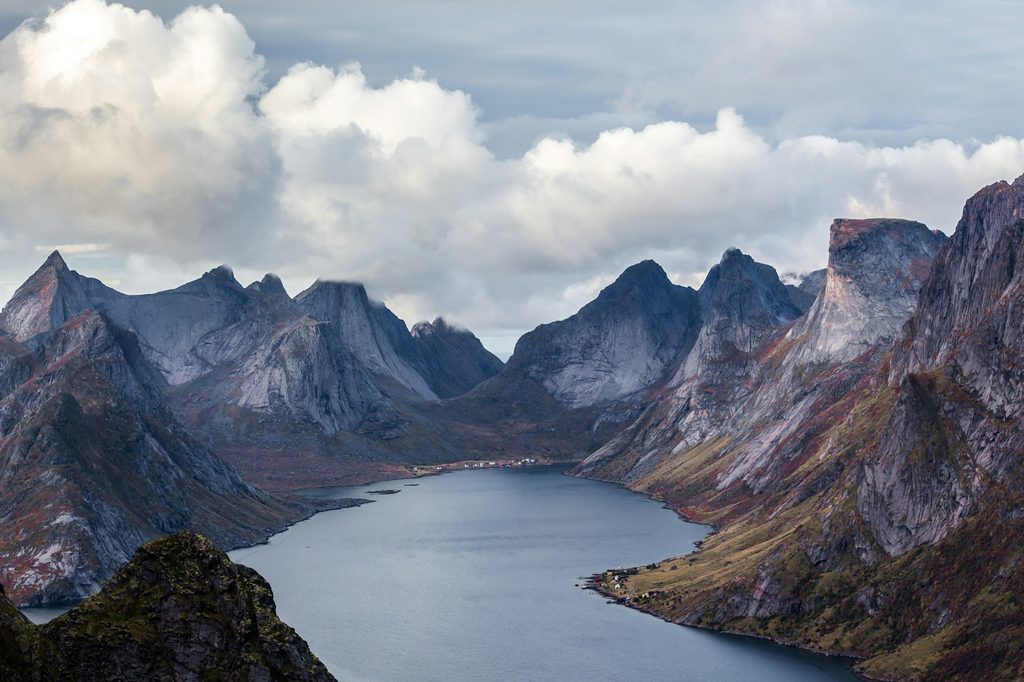
Hit the Play button. You can immediately run around your new landscape with your character. Collision and physics work perfectly without any extra configuration. You can start building your world right from this point.
Apply a base material
If you jump into the Paint tab right now, you cannot paint anything because the terrain lacks a material. Let’s fix that.
Return to Selection mode and click your landscape. In the Details panel, find the Landscape Material slot. Search for the default grass material from the Starter Content and assign it. Within a few seconds, your entire terrain will be covered in grass. It is just a flat texture right now rather than 3D grass meshes, but it serves our purpose.
If you cannot find it, click Add > Add Feature or Content Pack, and import the Starter Content into your project.
Create layered materials
Now, let’s set up multiple layers so we can paint sand or rock alongside the grass.
- Select your grass material in the content browser and press Ctrl + D to duplicate it. Let’s call it grass 2.
- Drag and drop this new material onto your landscape.
- Double-click the material to open the editor.
The material graph might look intimidating with normal maps and texture variations, but we only care about the Base Color section.
Right-click an empty space in the graph and search for a Landscape Layer Blend node. This node is what allows us to mix different textures.
- Add your first layer and name it grass. This acts as our foundation.
- Add a second layer and name it rock.
Hold Ctrl, click the output pin of your existing grass texture, and plug it into the grass layer of the blend node. Then, connect the output of the blend node to the main Base Color input. Next, copy and paste the texture node using Ctrl + C and Ctrl + V, plug it into the rock layer, and swap the image inside for a rock texture.
We are ignoring normal maps and roughness to keep things simple and focus purely on the logic. Apply and save the material. The setup froze on me once during this compile step, so just give it a moment to process the shaders.
How to troubleshoot material errors?
Sometimes, after saving, your landscape turns pitch black, and the layers refuse to show up in the Paint tab. It didn’t work on my first attempt because the engine failed to refresh the cache.
If this happens, try these quick fixes:
- Disconnect and reconnect the output node in the material editor.
- Hit Play, then stop the game.
- Toggle between Landscape and Selection modes.
These quick nudges usually force the engine to update. If nothing works, simply save your project and restart the editor.
Generate layer info files
Once the engine updates, you will see your grass and rock layers in the Paint tab. However, you still cannot paint because they need layer info files.
- Click the + icon next to the grass layer.
- Select Weight-Blended Layer.
- Accept the default save location.
When you do this for the grass layer, the entire landscape fills with grass. Repeat the exact same steps for the rock layer. It might take a few seconds to compile.
Paint textures on your terrain
Select the rock layer in the Paint tab and brush over your landscape. You will see the rock texture blend into the grass. The result might look a bit repetitive right now because we have not configured advanced texture tiling, but the core system is fully functional.