
If you want to know exactly how powerful your graphics card is, or if you need to check system stability after an upgrade or an aggressive overclock, UNIGINE Heaven is one of the easiest and most reliable tools out there.
What is UNIGINE Heaven?
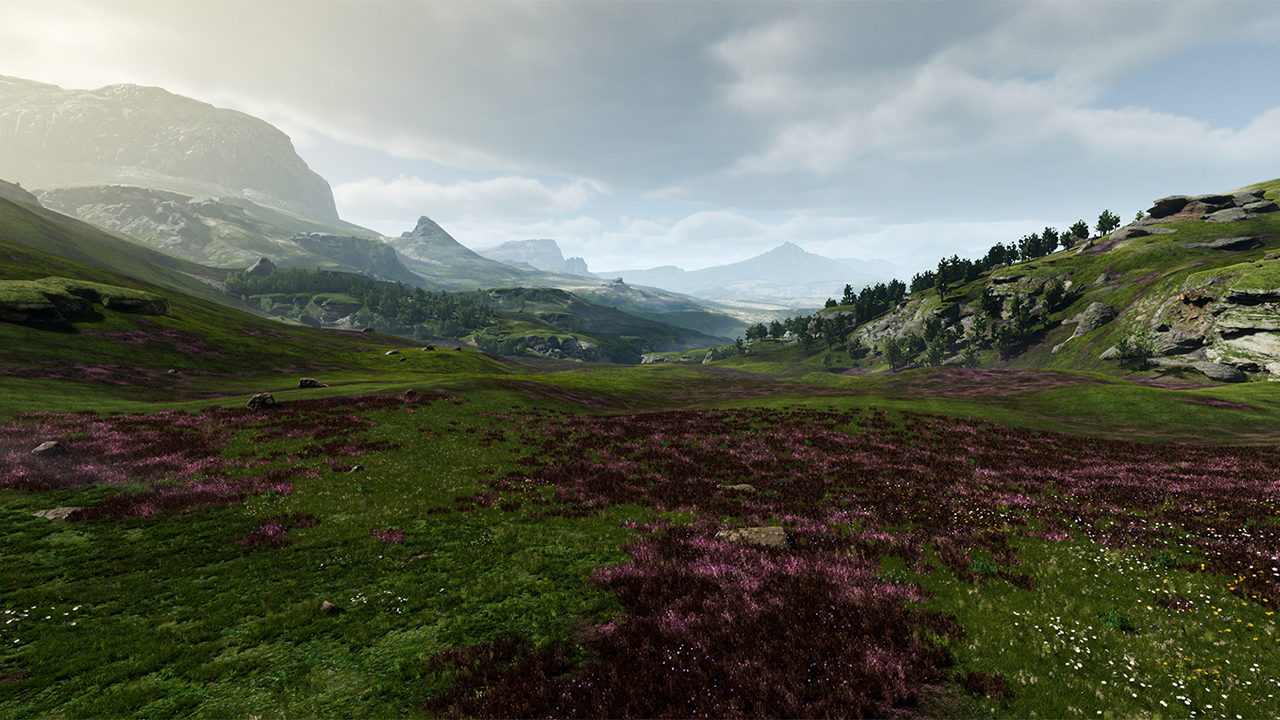
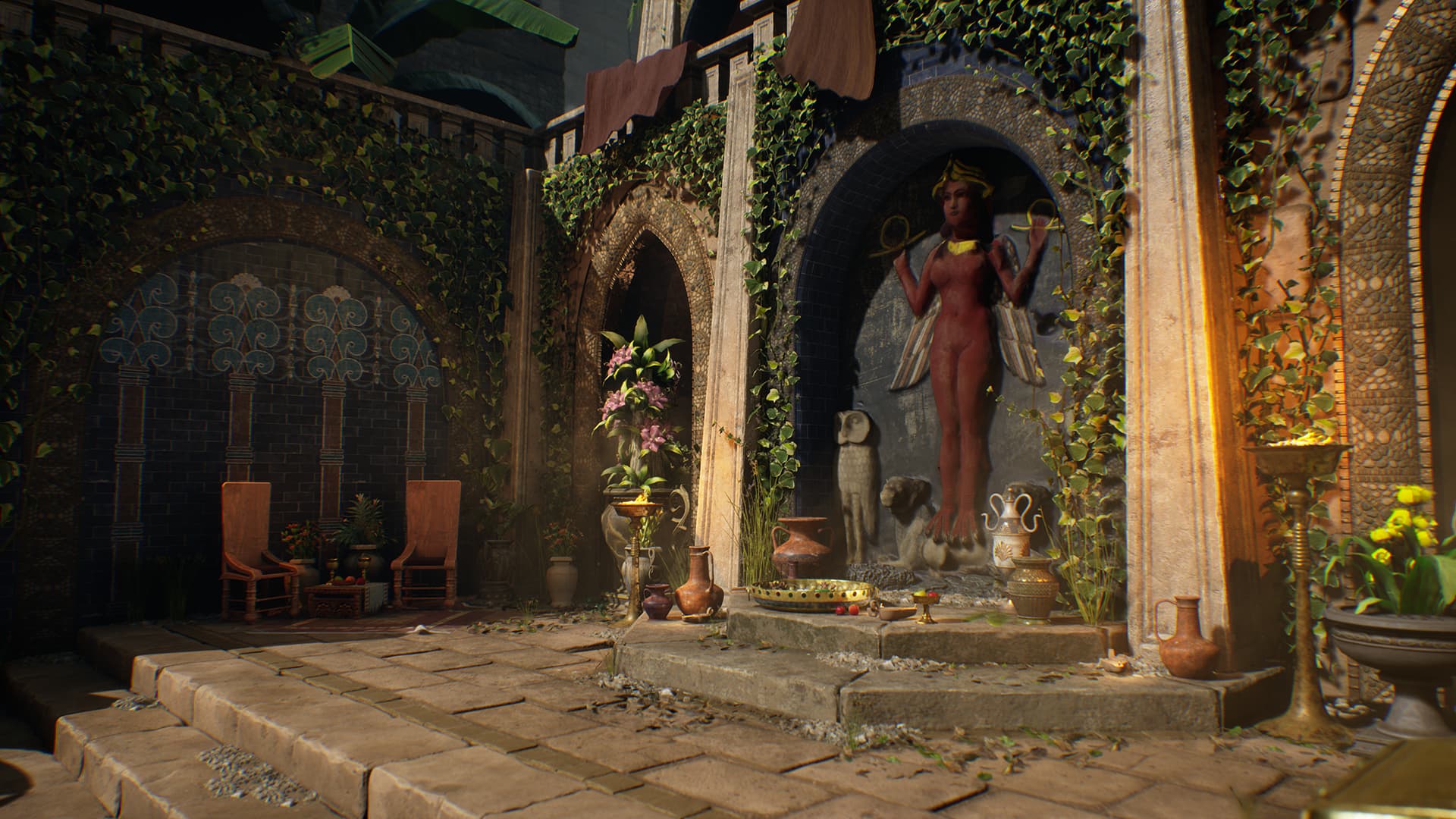
UNIGINE Heaven is a completely free GPU benchmark tool. When you run it, it renders a massive, animated 3D world packed with flying islands, detailed buildings, and heavy lighting effects. Under the hood, it is pushing your graphics card through an intense stress test.
The software forces your GPU to its absolute limits so you can clearly see:
- How many Frames Per Second (FPS) your system can handle
- How hot your GPU gets under maximum load
- Whether your system remains perfectly stable without crashing or stuttering
Despite being around for quite a few years, it remains highly popular in the PC building community. It is incredibly easy to use, and you can instantly compare your final scores with thousands of other users online.
Setup and getting the software
Your first step is getting the software onto your machine. Just search for “UNIGINE Heaven benchmark” on Google and download it straight from their official site. I once accidentally downloaded it from a shady third-party mirror site and had to scan my entire PC for malware, so always stick to the official source. It is totally free.
Once the setup is complete, make sure you close out any heavy background applications before running it. If you leave a dozen Chrome tabs or another game running in the background, it will completely tank your benchmark scores.
Why you need monitoring software for overclock testing?
If you just overclocked your card, I highly recommend keeping a dedicated hardware monitor open right next to the benchmark window. Tools like MSI Afterburner or HWMonitor do the job perfectly. This allows you to track critical metrics in real time:
- Temperatures
- GPU clock speeds
- Overall GPU usage
If your system starts overheating rapidly or showing signs of instability, you will catch it immediately before any real damage happens. I once pushed a memory clock way too high, and if I hadn’t seen the temperatures spiking on HWMonitor, my PC probably would have hard-crashed.

How to configure settings?
When you open Heaven, the main settings menu pops up immediately. This is where you dictate exactly how hard you want to punish your hardware.
Presets
You can choose from basic, high, and extreme presets. The higher the level, the more demanding the test becomes.
Resolution
Most users run their tests at 1080p because it is the widely accepted standard for comparing scores online. However, if you want to see if your rig can handle heavy loads, you can absolutely crank it up to 1440p or 4K.
Anti-aliasing
Anti-aliasing smooths out jagged edges on 3D models. The tradeoff is that turning this up makes the test significantly heavier for your GPU to process.
Full screen vs windowed
You can choose either option here. I always stick to full screen because it generally provides much more consistent and reliable results.
Recommended starting configuration
For a solid baseline test, start with these settings:
- 1080p resolution
- High or Extreme preset
- 8x anti-aliasing
If you are trying to measure performance differences before and after an overclock, you must use the exact same settings for both runs; otherwise, the comparison means nothing. I forgot to check my anti-aliasing settings on my second run once and spent ten minutes wondering why my “overclocked” card was performing 20% worse.
Running the benchmark
Once your settings are dialed in, hit the Run button. The software will load up the 3D world, and the camera will start slowly panning across the highly detailed environment.
In the top left corner of the screen, you will see:
- Your real-time FPS
- Current GPU usage
- Temperature data (if your monitoring software is properly hooked in)
A single benchmark run usually takes a few minutes to complete. Just sit back and let it play out to the very end.
How to run stability test?
If you want to truly stress-test your system to see if your overclock holds up, you can leave the test running in a continuous loop for about 10 to 15 minutes. If your PC does not crash, you do not see strange visual artifacts tearing across the screen, and your card does not start thermal throttling, your setup is highly likely perfectly stable.
Conclusion
When the test finally wraps up, Heaven presents you with an overall score alongside these specific metrics:
- Average FPS
- Minimum FPS
- Maximum FPS
The higher your score, the stronger your hardware. The most critical number here is the Average FPS, as it gives you the most realistic picture of the performance you can expect during heavy gaming sessions.
You can save these results and compare them online against identical hardware setups. It is also the perfect way to definitively measure your performance gains after upgrading parts or fine-tuning your system.